> ## Documentation Index
> Fetch the complete documentation index at: https://docs.intros.ai/llms.txt
> Use this file to discover all available pages before exploring further.
# AI Search
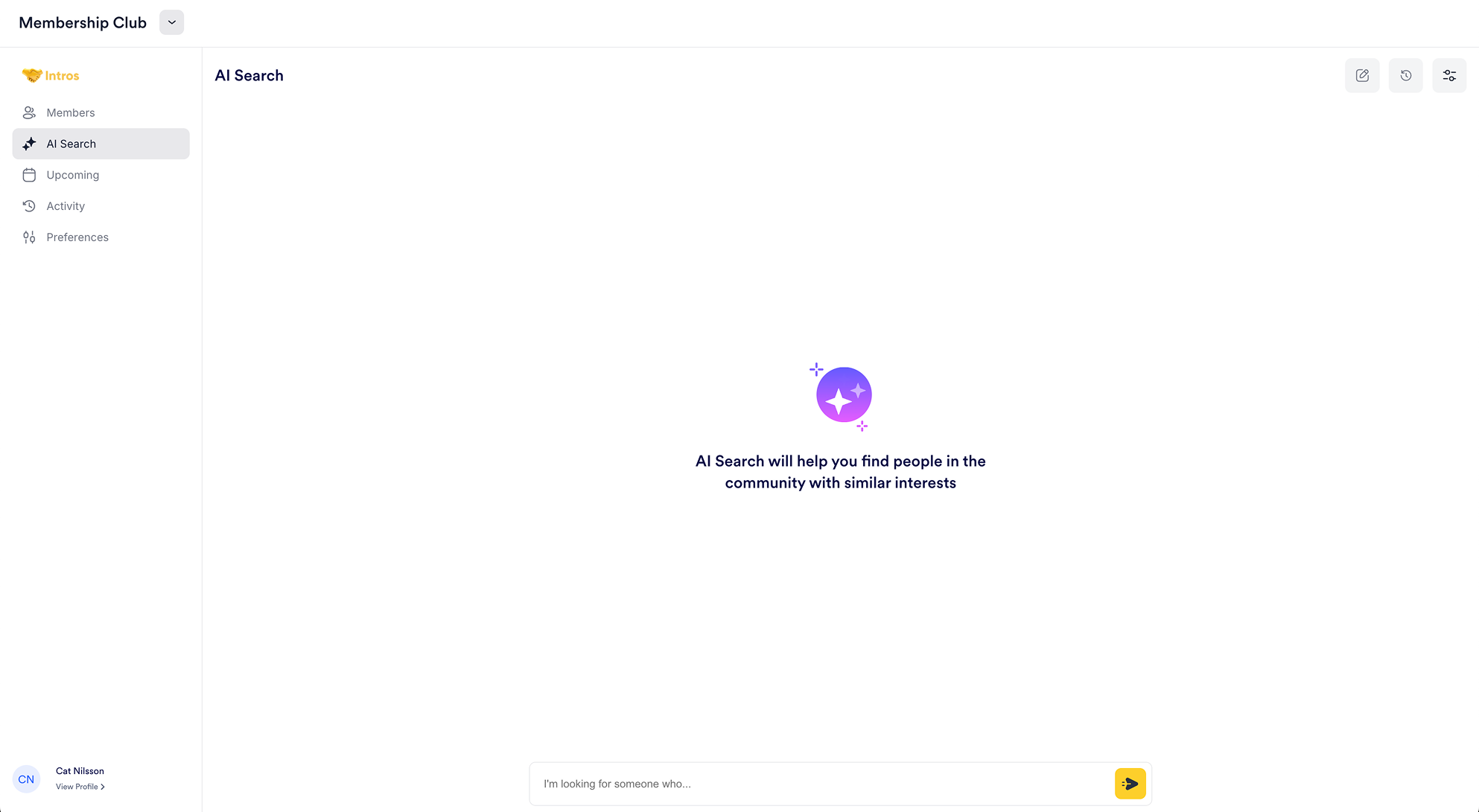
Welcome to the AI Search page, where members can use AI to find and connect with others in the community based on their preferences.
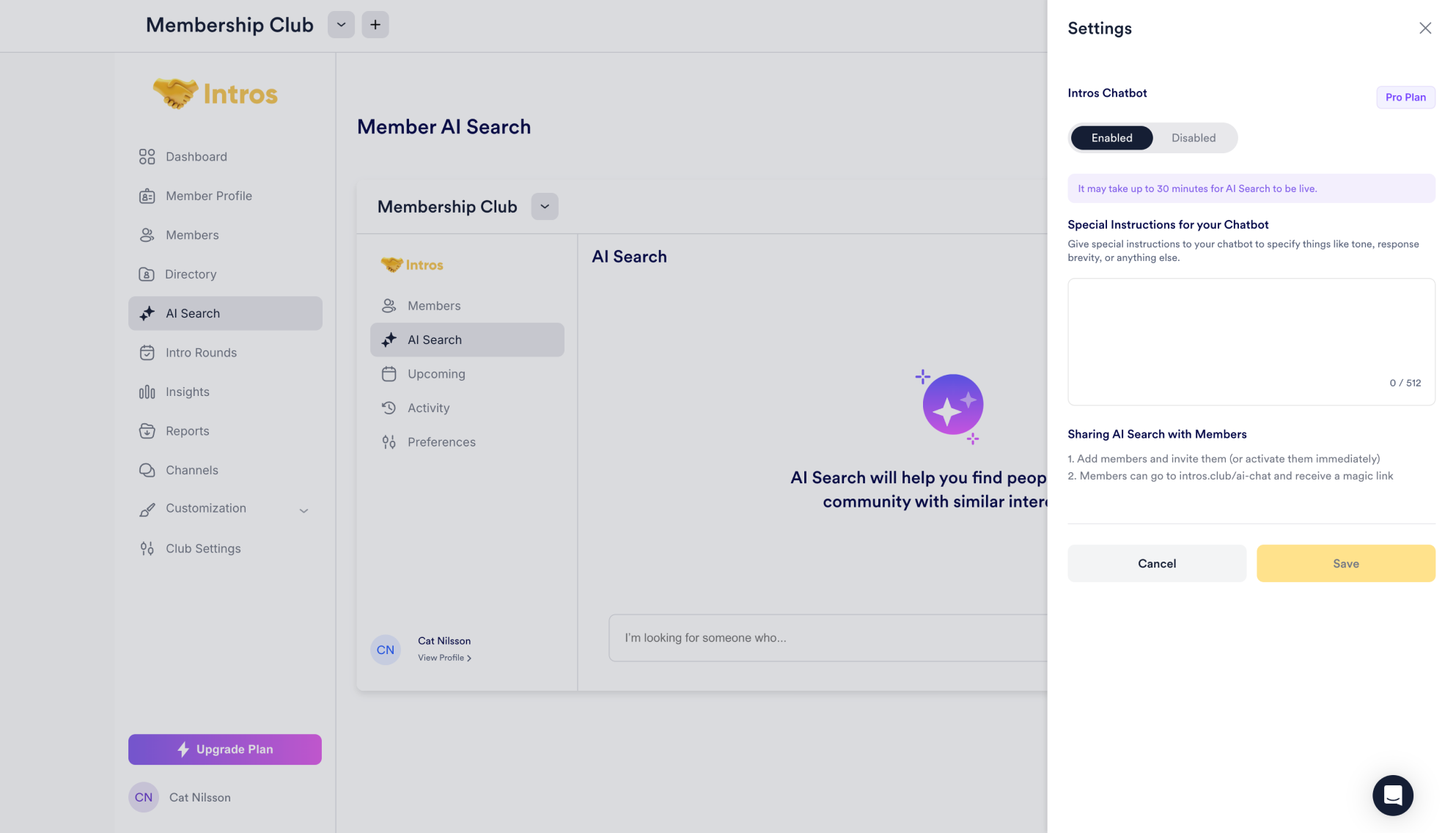
**Note:** You can click the toggle icon on the right side of the page and select "Disabled" if you prefer not to have AI Search, preventing members from using AI to find other members.
**Pro Tip:** You can customize the chatbot’s responses by providing special instructions, such as tone, response length, or other preferences to enhance your members' experience.
***
### Member AI Search Experience
To share AI Search with your members, add and invite them to the community (or activate them immediately). Then, there are three ways that members can directly access the product:
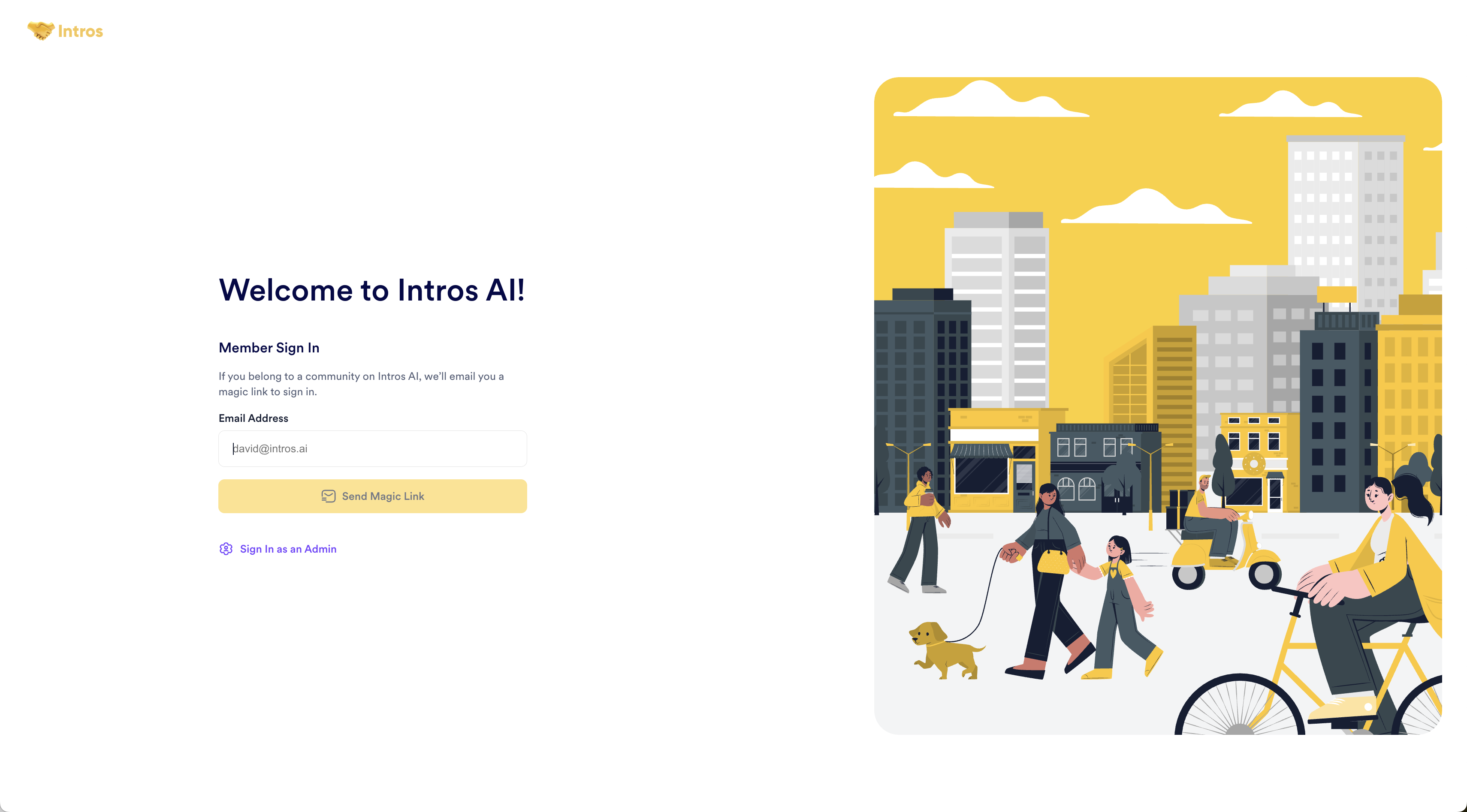
* **Standard Website Login:** Visit [intros.ai](http://intros.ai/), click "Log In", then sign in as a member using their email & receive a magic link.
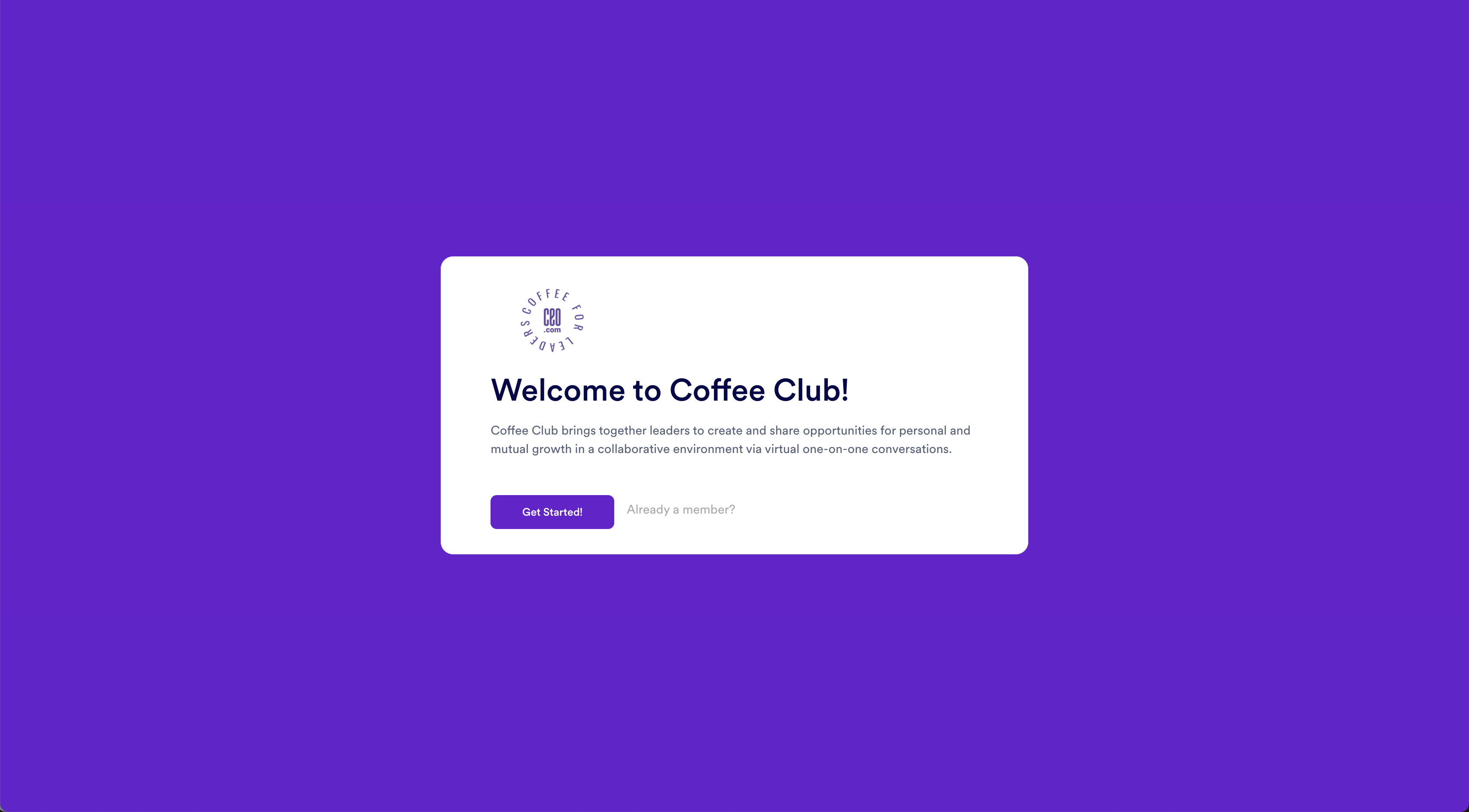
* **White-Labeled Sign-In (Like Techstars):** Click “Already a Member?” on the custom login page (onboarding form), enter their email & receive a magic link.
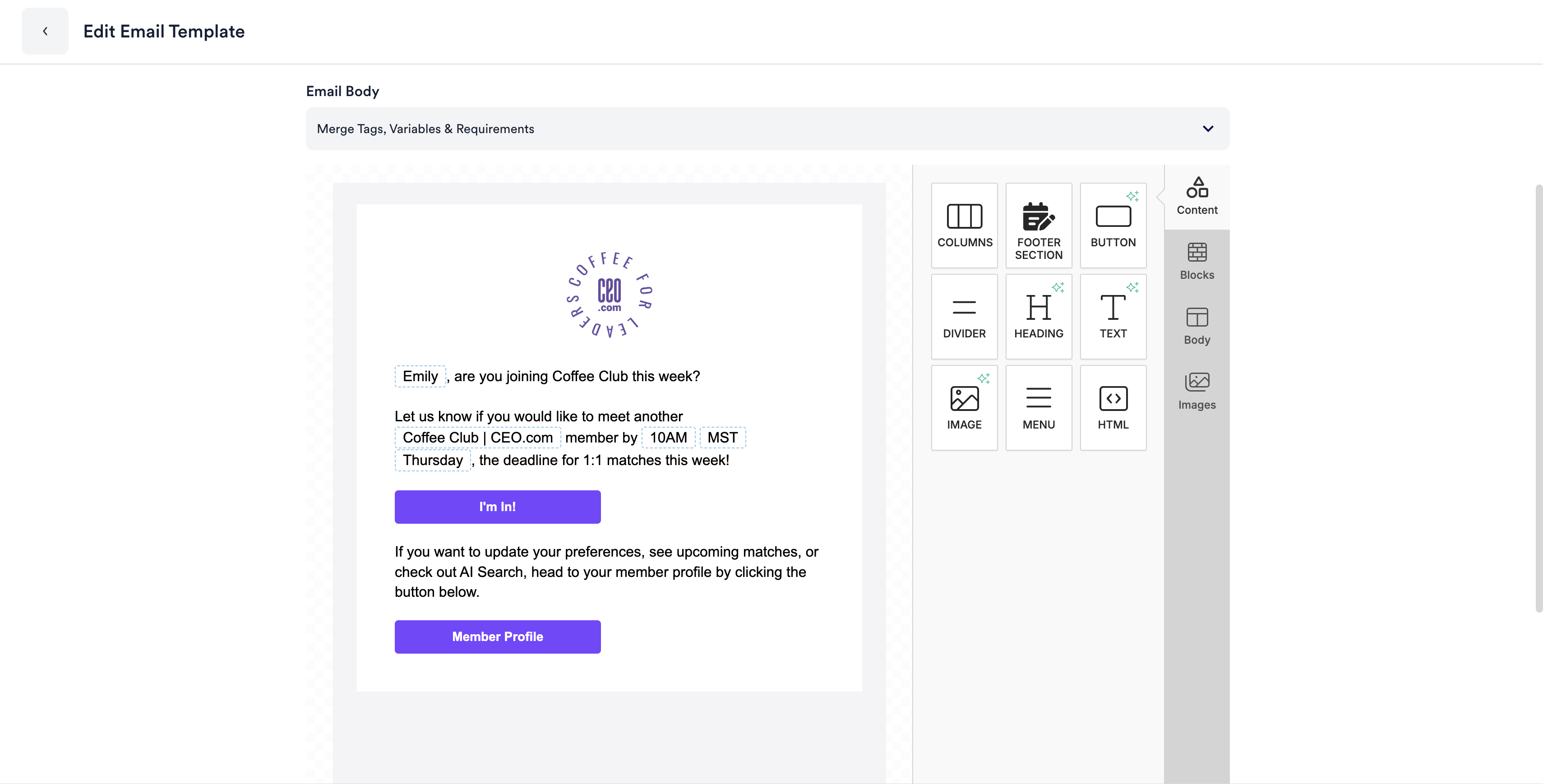
* **Magic Link via Opt-In Email:** Members receive an opt-in email with a direct login link & clicking it logs them in automatically.
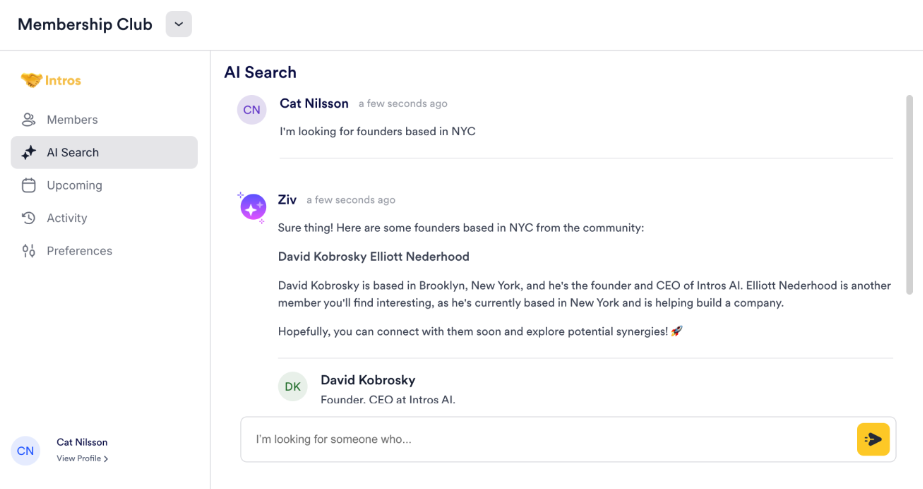
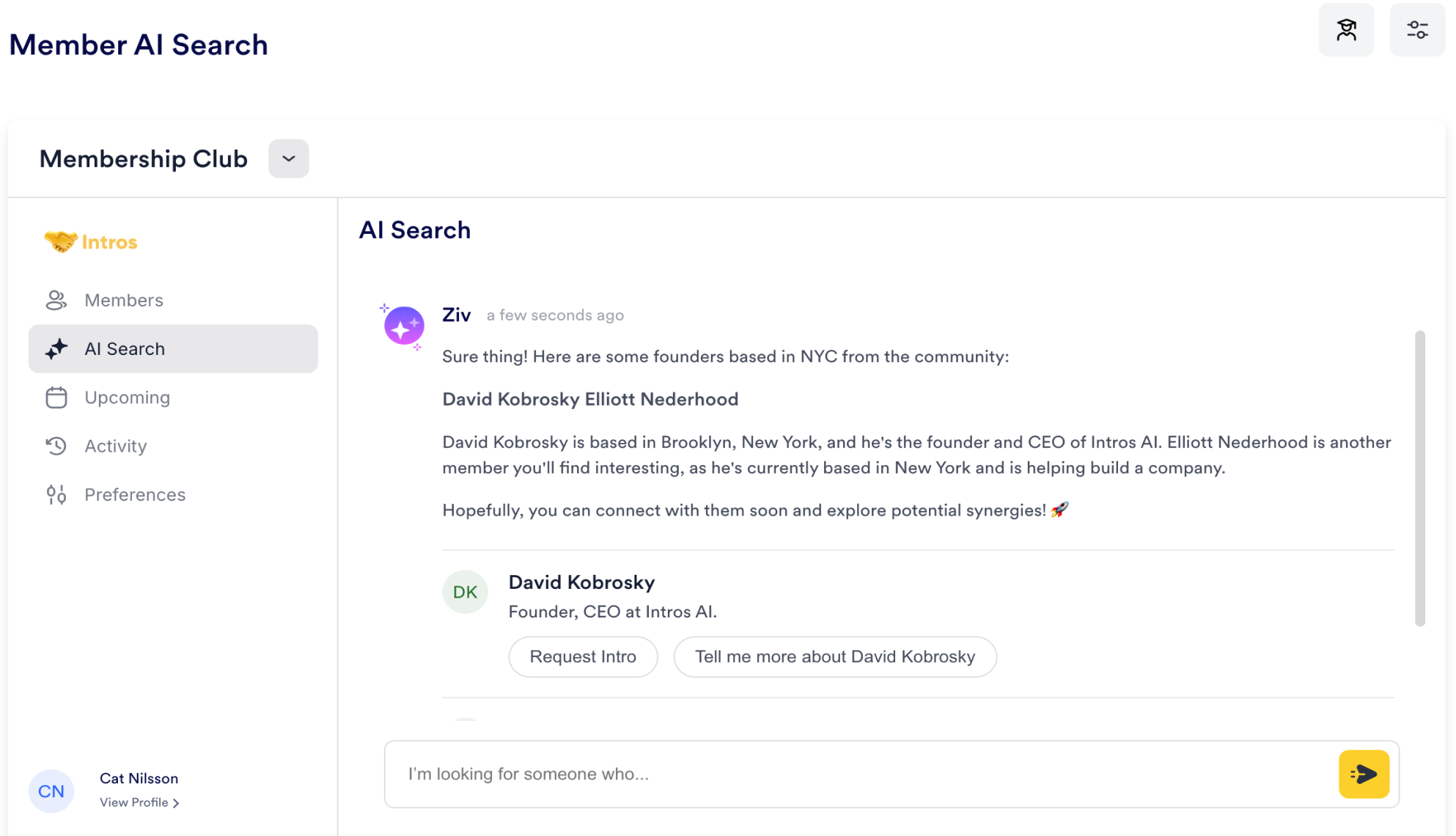
Below is an example of a member query: *"I'm looking for founders based in NYC."* Ziv, our chatbot, will return relevant members based on the query.
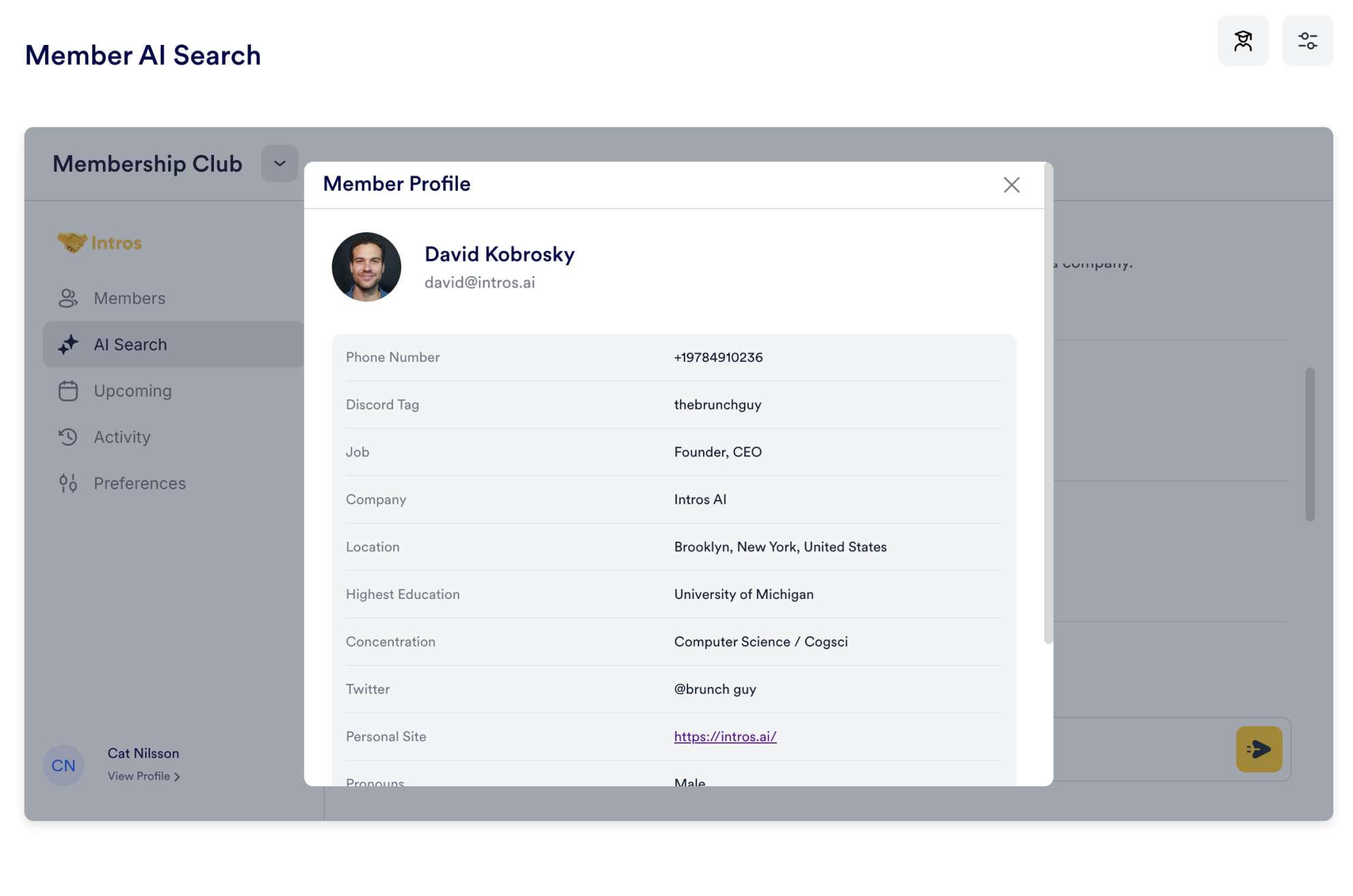
Members can click on a name to view more details on their profile, such as phone number, job title, company, and more.
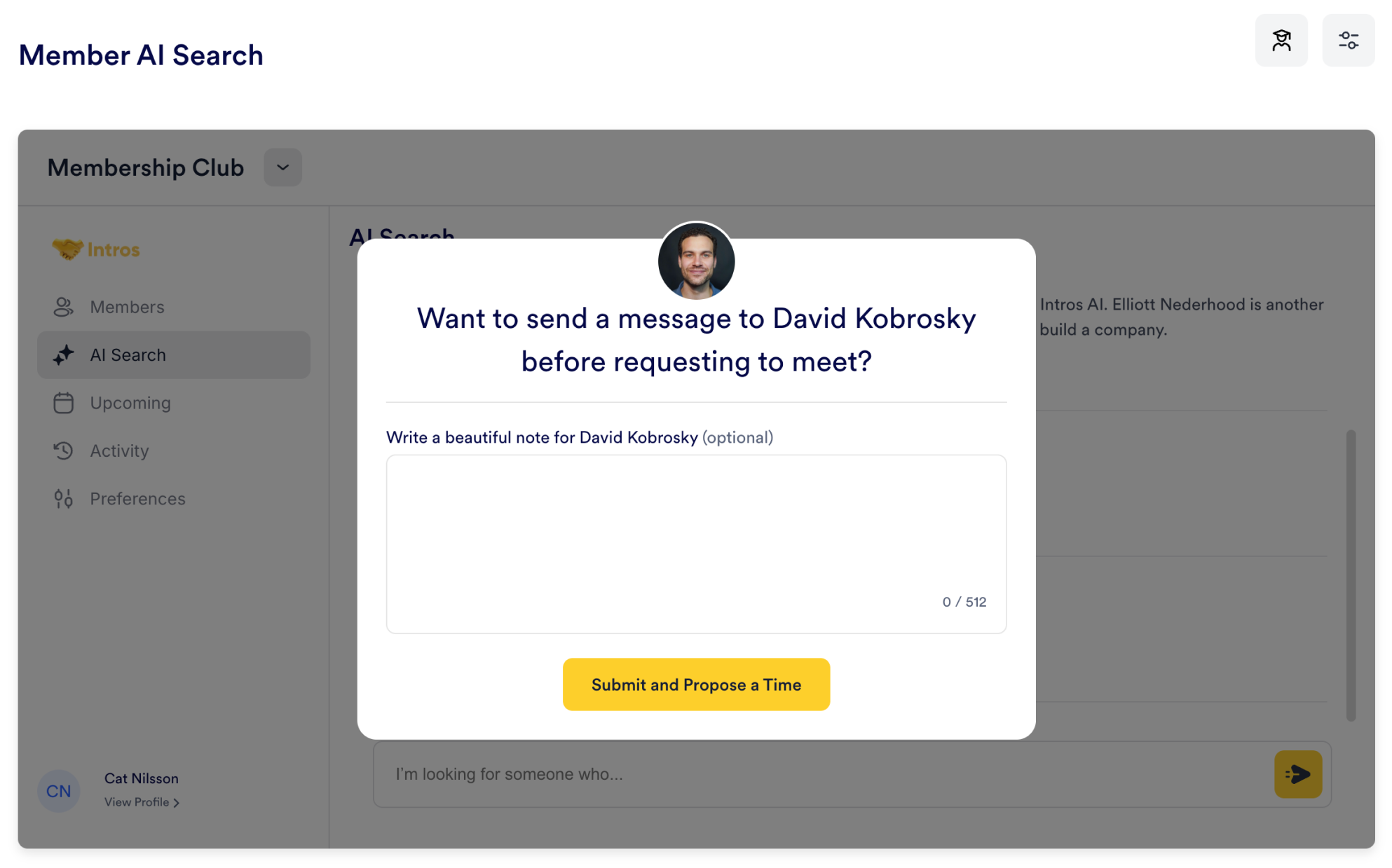
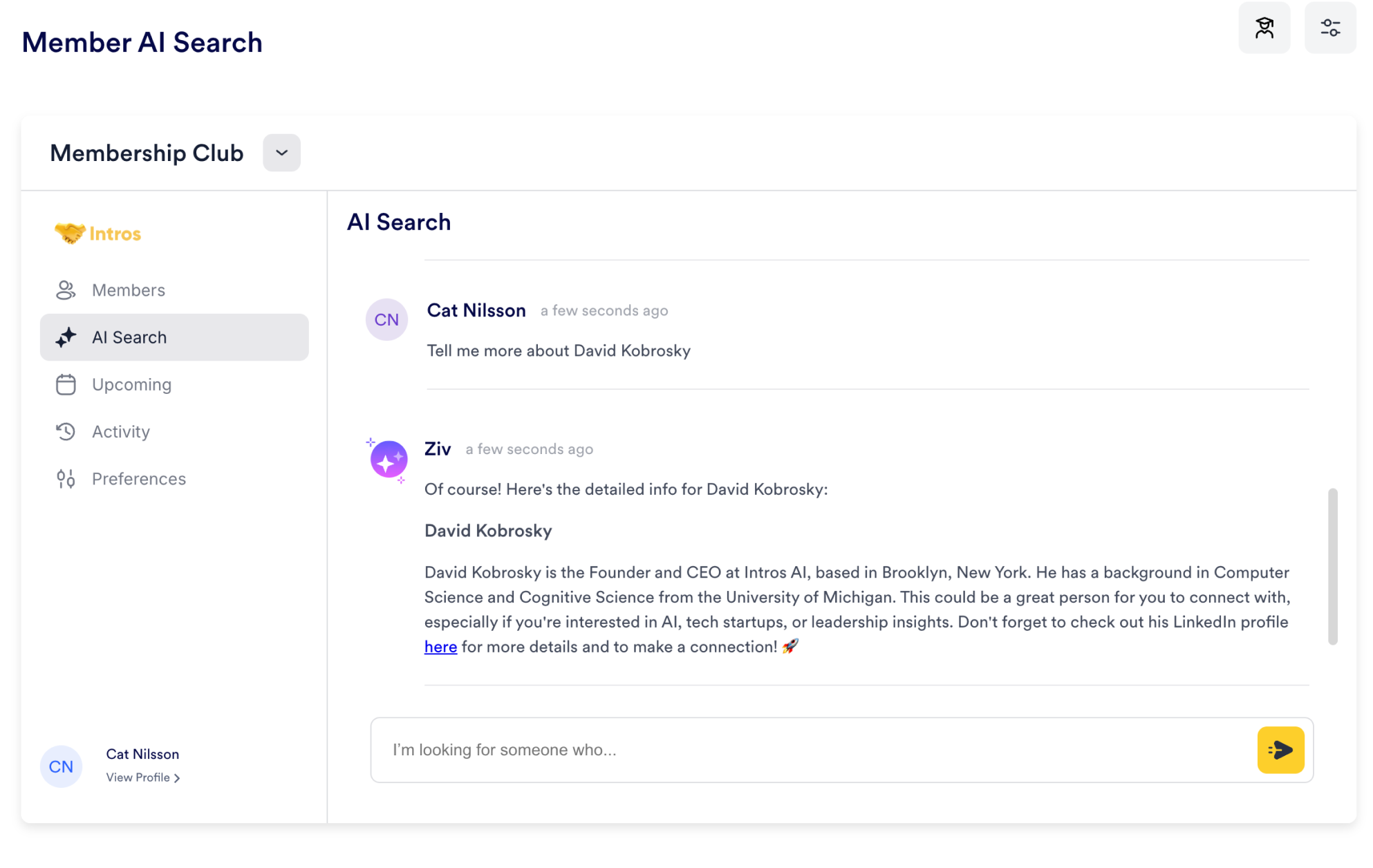
Members have two options: they can either request an intro by sending a message and proposing a time to chat, or they can request more information before deciding to connect.
To request an intro, members simply type a personalized message, hit “Submit and Propose a Time,” and it will be marked as “Request Sent.”
If members request more information, they’ll receive a detailed response with additional personal details.
Check out our demo on AI Search below!
 Welcome to the AI Search page, where members can use AI to find and connect with others in the community based on their preferences.
 * **White-Labeled Sign-In (Like Techstars):** Click “Already a Member?” on the custom login page (onboarding form), enter their email & receive a magic link.
 * **Magic Link via Opt-In Email:** Members receive an opt-in email with a direct login link & clicking it logs them in automatically.